How to Transcribe Lecture to Text: A Step-by-Step Guide
Transcribe a lecture to text by importing a recording into MiniTool Video Converter or Otter.ai, generating and editing the transcript, then exporting it.
By Mia / Published
Here you’ll find solutions and guides that show how AI can improve your workflow, especially in handling video and audio. At present, we focus on video to subtitle converter using AI models, such as generating subtitles directly from video, editing them as needed, and saving either a subtitled video or a standalone subtitle file. Fast and Easy!
Transcribe a lecture to text by importing a recording into MiniTool Video Converter or Otter.ai, generating and editing the transcript, then exporting it.
How to transcribe MP4 to SRT? Get a speech-to-text converter, add an MP4 video, set SRT as the output format, and start converting.
This guide shows how to transcribe Korean speech to text using MiniTool Video Converter, creating editable SRT or TXT subtitles easily and quickly.
This guide explains how to transcribe Arabic video using MiniTool Video Converter. Learn how to improve transcription accuracy with practical tips.
Here is how to enhance video clarity with MiniTool Video Converter: upload your video, set the enhancement level, and improve quality with one click.
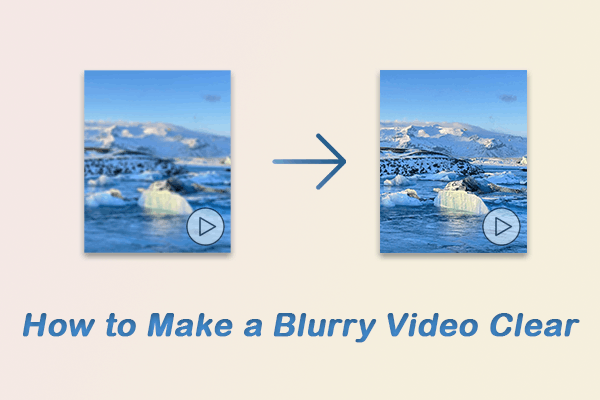
Here is how to make a blurry video clear using MiniTool Video Converter and Topaz Labs. Simply upload a video and improve the quality immediately.
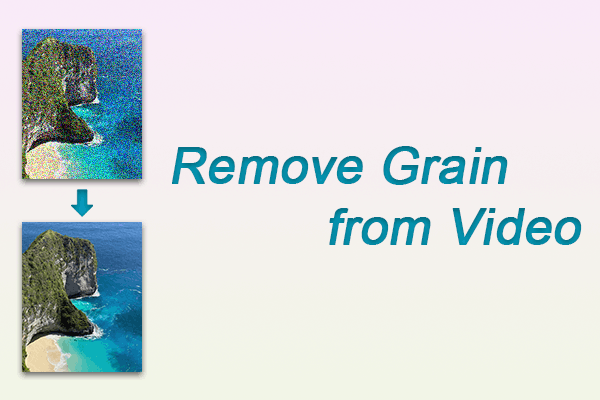
Here is how to remove grain from video using MiniTool Video Converter: add your video, select the video denoiser mode, and start enhancement.
Here is how to improve video quality after recording using MiniTool Video Converter: add the video, select an enhancement level, and start the process.
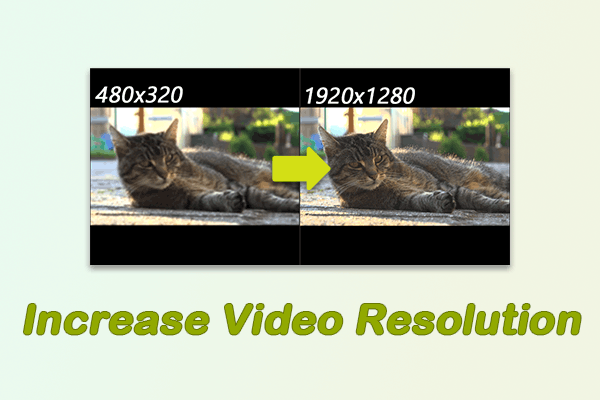
Here is how to increase video resolution with MiniTool Video Converter. Add a video, choose an enhancement level, and start the process.
Here is how to enhance MP4 video quality with AI upscaling, noise reduction, color correction, and stabilization for clearer, smoother playback.