by Gabriele Santini www.blacksun.fr
--|--
- What is GIT
- Principles of GIT
- Starting with GIT
- Working with GIT
- More stuff
--|--
- GIT is a VCS
- Birth of GIT
- Goals of GIT
- GitHub
- GIT adoption
- VCS (Version Control System)
- Other VCS in order of appearence:
- CVS (1986),
- ClearCase (Rational, 1992),
- Perforce (Perforce, 1995),
- Subversion (2000),
- "TFS" (Team Foundation Version Control - Microsoft, 2005),
- Mercurial (2005),
- Bazaar (2005),
- created by Linus Torvalds (father of Linux) in 2005
- initially developed for linux kernel development, in replacement of proprietary BitKeeper
- project mantainer since end of 2005 is Junio Hamano
The initial goals of GIT where:
- Speed
- Simple design
- Strong support for non-linear design
- Fully distributed
- able to handle efficiently large projects (like Linux kernel)
- GIT host repository, free for Open Source
- launched in 2008
- offers many project services over source code hosting:
- Documentation, wikis, mini-sites
- Tasks, issue tracking
- ...
- Gist
- GitHub is today the world's biggest code host, it has more than 3 million users, over than 10 million repositories
- popularity of Git explosed with GitHub
- in 2014 Git overtook Subversion in Eclipse Foundation results (biaised Java Open Source)

--|--
-
Git is a DCVS (Distributed VCS)
-
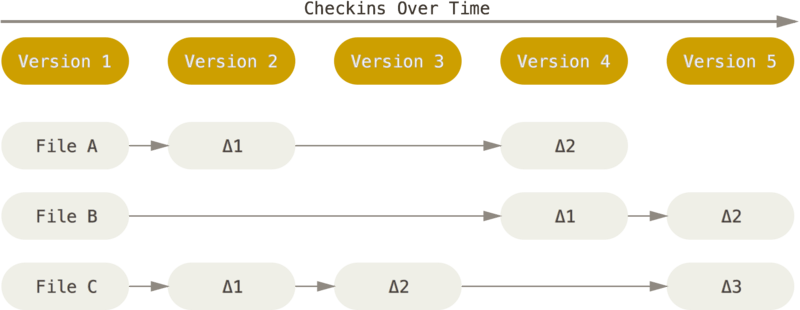
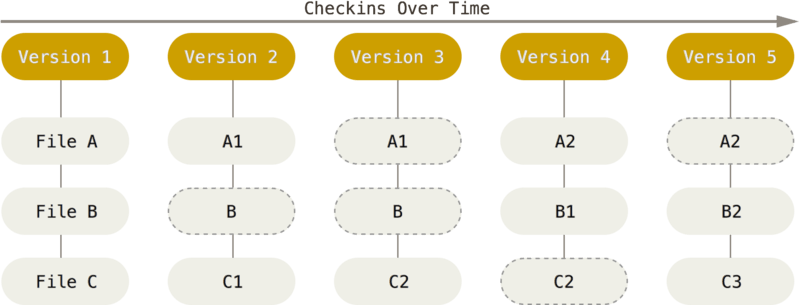
Git works on snapshots
-
Git has integrity builtin
-
Git works locally (amap)
-
Git has 3 local states
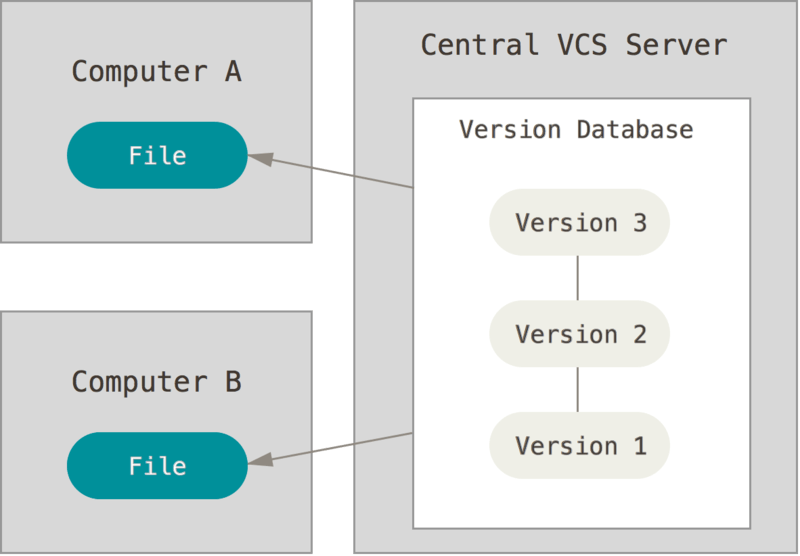
Probably what you had until now: CVS and Subversion are VCS.
One Server is responsible for mantaining versioned files.
This allows for heavy collaboration, having an HEAD version, easely controlling authorizations and rights
But Server is a SPOF, and some heavy operations can be slow.
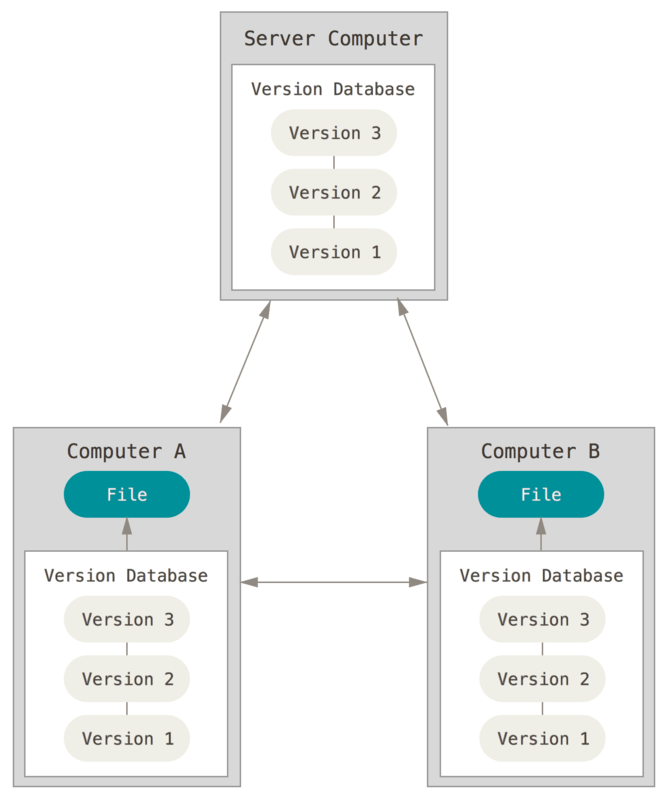
New VCS (Git, Mercurial, Bazaar, Darcs) tend to be distributed.
Each Client is a potential server (it has all history).
This eliminates constant need of server, SPOF and allows local collaborations
GIT checksum everything internally and use SHA-1 checksum hashes instead of filenames on his DB
No data corruption possible.
As almost everything is stored locally, the real needs to perform distant operations are minimized.
This allows for working without connection to server, and to gain speed.
NB: VERY IMPORTANT TO UNDERSTAND!
This is often confusing when starting to use Git.
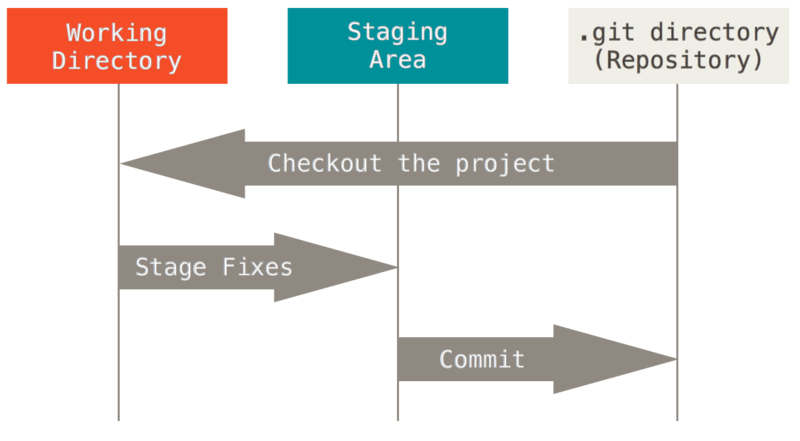
On your project you will have three possible states:
-
a Working Copy (the physical files with which you work, your workspace)
-
a Staging Area (a virtual place that contains infos about what will go in next commit), historically called Index and Cache
-
the Git Directory (where Git stores all metadata and objects for the project, the repository)
The Git basic workflow is:
-
you modify files in your working directory
-
you "stage the files" (you add snapshots of them to "staging area")
-
you commit them locally (this takes the snapshots from staging area to Git directory)
--|--
- Install GIT
- GIT CLI
- Configure GIT
Of course every linux distrib has git packages
> apt-get install git
> yum install git
Git is also available on Mac and Windows
Use the Command Line!!
	> git
usage: git [--version] [--help] [-C <path>] [-c name=value]
           [--exec-path[=<path>]] [--html-path] [--man-path] [--info-path]
           [-p|--paginate|--no-pager] [--no-replace-objects] [--bare]
           [--git-dir=<path>] [--work-tree=<path>] [--namespace=<name>]
           <command> [<args>]

The most commonly used git commands are:
   add        Add file contents to the index
   bisect     Find by binary search the change that introduced a bug
   branch     List, create, or delete branches
   checkout   Checkout a branch or paths to the working tree
   clone      Clone a repository into a new directory
   commit     Record changes to the repository
   diff       Show changes between commits, commit and working tree, etc
   fetch      Download objects and refs from another repository
   grep       Print lines matching a pattern
   init       Create an empty Git repository or reinitialize an existing one
   log        Show commit logs
   merge      Join two or more development histories together
   mv         Move or rename a file, a directory, or a symlink
   pull       Fetch from and integrate with another repository or a local branch
   push       Update remote refs along with associated objects
   rebase     Forward-port local commits to the updated upstream head
   reset      Reset current HEAD to the specified state
   rm         Remove files from the working tree and from the index
   show       Show various types of objects
   status     Show the working tree status
   tag        Create, list, delete or verify a tag object signed with GPG
It is intuitive, rich of infos!
It is powerful! The full Git
It has wonderful help!
> git help -a
> git help <verb>
Exercise: read all help on git config
> git help config
Git configuration has three system levels:
--system- system global (on Linux in /etc/gitconfig)--global- user global (on Linux in ~/.gitconfig)--local- repository (in .git/config)
Values override (specific over generic).
> git config --global user.name "John Doe"
> git config --global user.email johndoe@example.com
> git config --global core.editor vim
> git config --list
> git config <key>
--|--
- Get a Repository
- Working with local changes
- Working with remote(s)
- Branching (opt.)
- Tagging (opt.)
Initialize a repository for an empty local project,
or put an existing local project under version control:
> git init
Clone an existing repository:
> git clone https://github.com/project/project
> git clone username@host:/path/to/repository
(according to protocol choice https or ssh)
This does all necessary using defaults:
- it creates the working directory from remote master branch
- cloned repository becomes remote origin
- local branch is set to master
(all this will become clearer later)
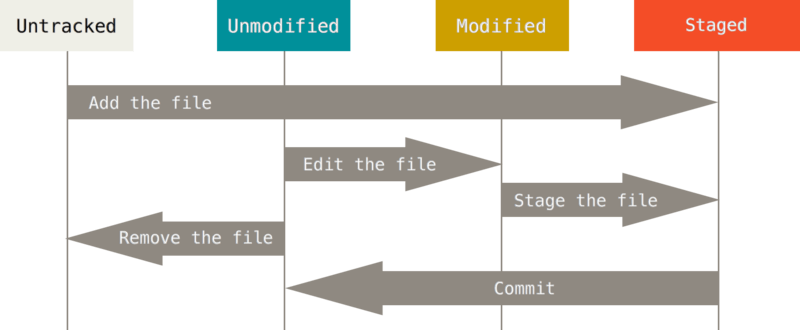
Each file can be tracked or untracked, modified or unmodified.
So there is a workflow for files
> git status
> git status -s
> git add <filename>
> git add *
Use .gitignore file
# no .a files
*.a

# but do track lib.a, even though you're ignoring .a files above
!lib.a

# only ignore the root TODO file, not subdir/TODO
/TODO

# ignore all files in the build/ directory
build/

# ignore doc/notes.txt, but not doc/server/arch.txt
doc/*.txt

# ignore all .txt files in the doc/ directory
doc/**/*.txt
> git diff
> git diff --staged
> git commit -m "This is my beautiful commit!"
> git commit -a -m 'committed skipping staging'
> git rm <filename>
> git commit -m "removed <filename>"
> git mv <file_from> <file_to>
> mv <file_from> <file_to>
> git rm <file_from>
> git add <file_to>
Follow the tutorial tryGit by GitHub
Stop after step 9
(Ask instructor when in doubt)
> git remote
> git remote -v
> git remote -v
defunkt   https://github.com/defunkt/grit (fetch)
defunkt   https://github.com/defunkt/grit (push)
koke      git://github.com/koke/grit.git (fetch)
koke      git://github.com/koke/grit.git (push)
origin    git@github.com:mojombo/grit.git (fetch)
origin    git@github.com:mojombo/grit.git (push)
> git remote show origin
* remote origin
  Fetch URL: https://github.com/schacon/ticgit
  Push  URL: https://github.com/schacon/ticgit
  HEAD branch: master
  Remote branches:
    master                               tracked
    dev-branch                           tracked
  Local branch configured for 'git pull':
    master merges with remote master
  Local ref configured for 'git push':
    master pushes to master (up to date)
> git remote add origin https://github.com/schacon/ticgit
> git remote add pb https://github.com/paulboone/ticgit
> git remote -v
origin	https://github.com/schacon/ticgit (fetch)
origin	https://github.com/schacon/ticgit (push)
pb	https://github.com/paulboone/ticgit (fetch)
pb	https://github.com/paulboone/ticgit (push)
> git remote rename pb paul
> git remote rm paul
Pushing sends new local commits to remote server.
It requires write access to remote AND that local repository is up to date.
If local repository is not, a fetch/pull is required.
> git push <remote-name> <branch-name>
> git push origin master
Fetching gets data from remote to local
> git fetch <remote-name>
Fetching works at the repository level!
> git pull
Fetch and merge into your current branch.
At least it tries to merge, you can have conflicts
Follow the tutorial tryGit by GitHub
Stop after step 17
(Ask instructor when in doubt)
Create a new branch named "feature_x" and switch to it:
> git checkout -b feature_x
Switch to an existing branch:
> git checkout master
Merge a branch into your local active branch
> git merge <branch>
Delete a branch:
> git branch -d feature_x
Pushing the branch to a remote > git push origin
> git tag 1.0.0 1b2e1d63ff
Finish the tutorial tryGit by GitHub
(Ask instructor when in doubt)
--|--
- Working out common problems
- Calm down and get your cheat sheet
- GIT references and tutorials
replace the changes in your working tree with the last content in HEAD (current branch)
> git checkout -- <filename>
drop all your local changes and commits, recover server infos and history and point your local master branch at it
> git fetch origin
> git reset --hard origin/master
change last commit
> git commit --amend
Not exactly that, but very similar until you don't propagate changes to remotes.
Do not use otherwise!
Resolve conflicts by looking at them:
> git diff <source_branch> <target_branch>
resolve then manually, then "mark as marged" adding them back:
> git add <filename>
Follow the tutorial Git Immersion
(Ask instructor when in doubt)
